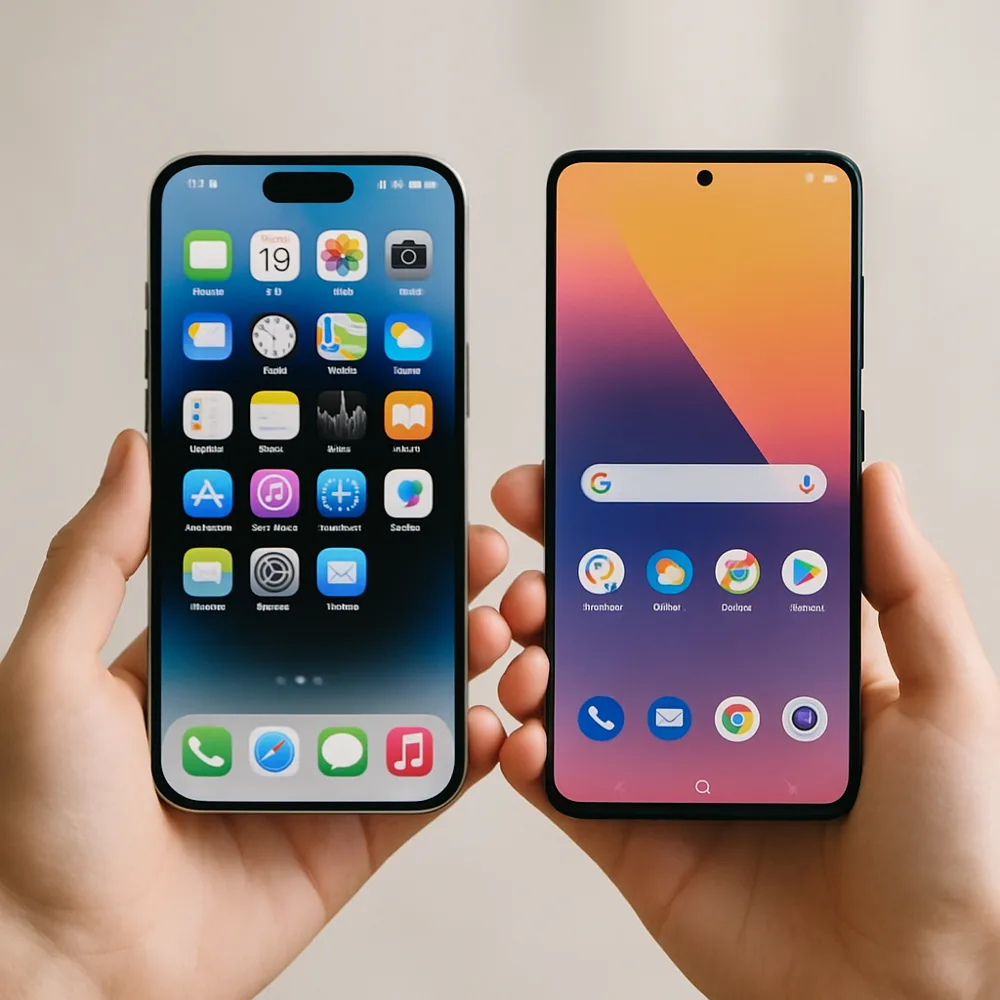
A phone battery gradually holds less energy as it ages, so a device that once lasted all day may need more frequent charging. Many phones provide battery information in Settings, though the wording and available details differ by maker and software version. Look for battery condition, capacity, usage history, or an alert about service. These indicators can help explain shorter runtime, but they are only part of the picture.
Check how quickly the charge falls during your normal routine, not only during a single afternoon. Screen brightness, weak cellular reception, background activity, navigation, video, and games can all increase energy use. The battery usage page may show which apps have been active. A sudden change after installing an app or updating software may point to a temporary process or a settings issue rather than a worn battery.
If the phone shuts down unexpectedly, becomes unusually warm during ordinary use, or its battery information recommends service, consult the manufacturer's support guidance or a reputable repair provider. Do not attempt to open a sealed phone unless you are qualified and have the right tools. Back up important data before repair. Battery health is useful context, but your actual experience and any safety warnings should guide what you do next.